Sill Seal
Overview
The Sill Seal module manages the production, packaging, and raw material unwinding of expanded polystyrene (EPS) sill seal products. This interface enables factory operators to track boxing throughput, manage finished box inventory, fulfill active sales order targets, and manage master roll unwinding runs.
This section covers two primary workflows: Box Sill Seal and Roll Master Rolls.
Accessing Sill Seal Functions
Upon navigating to the Sill Seal section (/sillseal/view/sill_seal_job_select), you will see the Select Sill Seal Function menu.
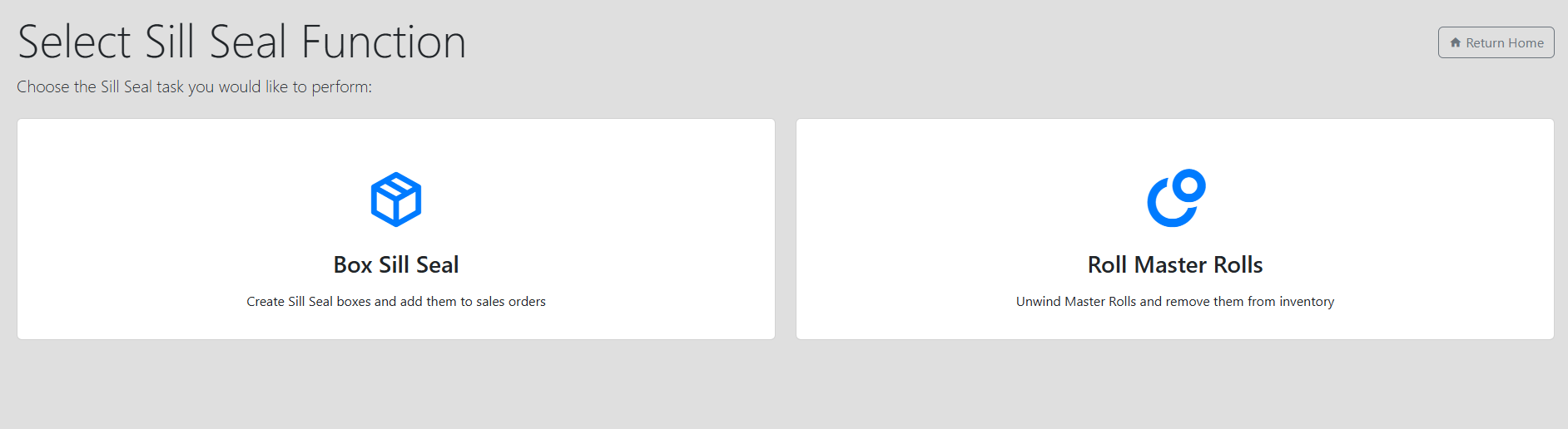
From this screen, choose the appropriate task:
- Box Sill Seal: Package finished sill seal into designated boxes and assign output to sales order targets or building inventory.
- Roll Master Rolls: Unwind master rolls into raw material stock and remove them from inventory.
Box Sill Seal Operations
The Box Sill Seal workflow tracks the packaging of sill seal rolls into specific box dimensions, monitors inventory totals, and fulfills sales order targets.
Starting a Boxing Job
To start a new boxing station session:
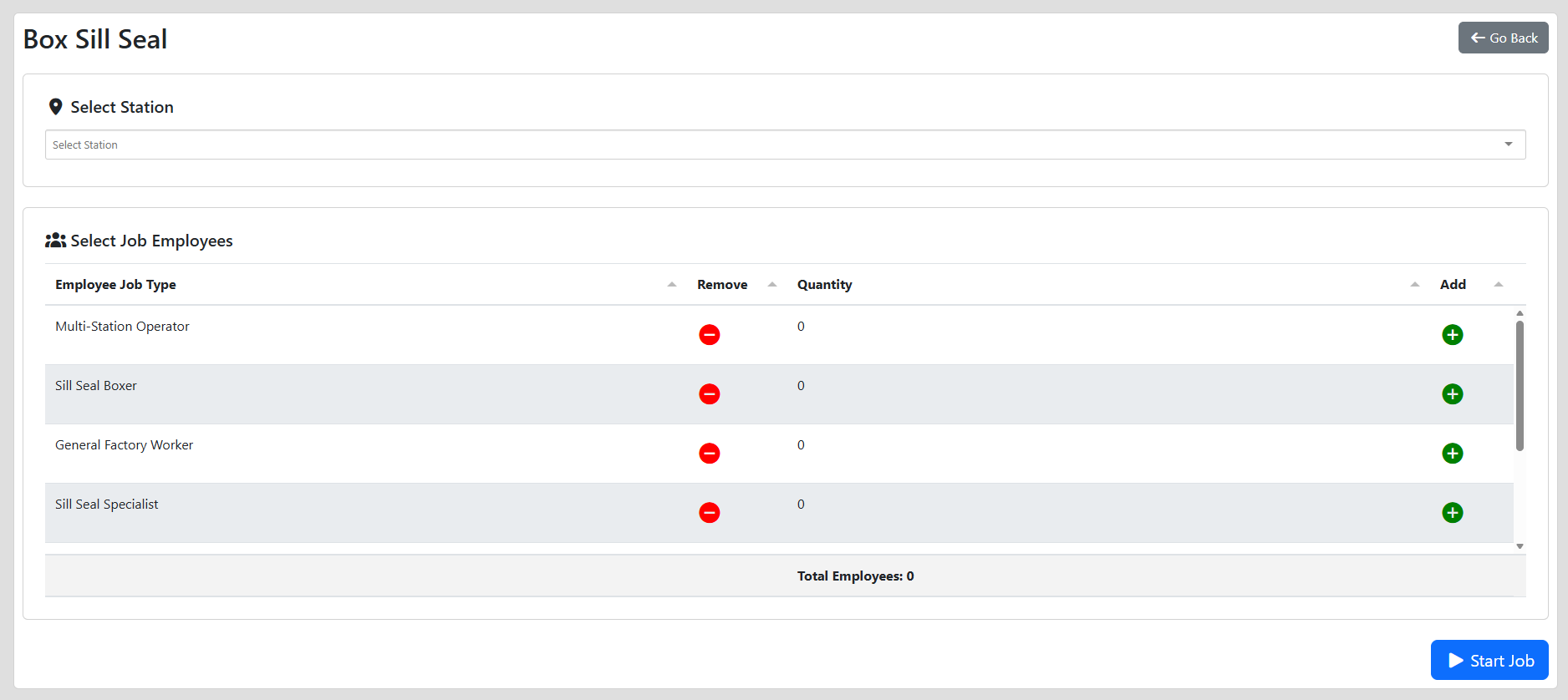
- Navigate to Box Sill Seal (
/sillseal/view). - Select the assigned Station (e.g., Station 1 or Station 2) from the dropdown list.
- In the Select Job Employees table, specify the number of workers assigned to each job role using the Add (
+) and Remove (-) buttons. - Click Start Job.
Managing a Boxing Job In Progress
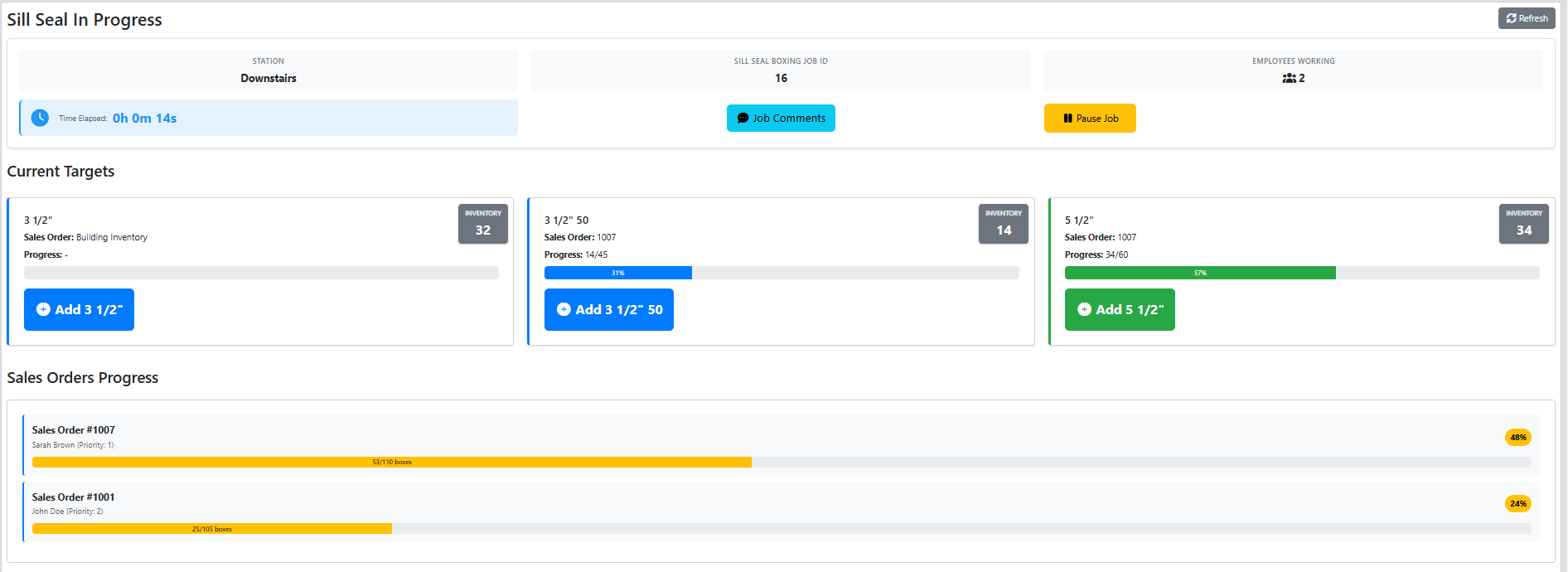
Once started, the station interface (/sillseal/in_progress/{station_id}) displays live production metrics, targets, and job tools.
Header Information & Timer
The header section displays:
- Station Label and Sill Seal Boxing Job ID.
- Employees Working count.
- Time Elapsed live job timer.
- Job Comments: Click to open a modal for recording shift notes (comments auto-save after 1 second of inactivity).
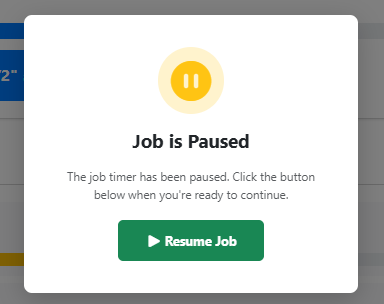
- Pause Job: Temporarily pauses the job timer during breaks or delays.
Current Targets Section
Color-coded target cards represent each available Sill Seal box size (e.g., 2 3/4", 3 1/2", 5 1/2", 7 1/2"):
- Inventory Badge: Displays the current total warehouse inventory count for that box size.
- Sales Order & Progress: Displays the next incomplete sales order target and current progress count (e.g.,
12/50). If no active sales orders require that size, it displays "Building Inventory". - Add Box Button: Click + Add [Box Type] to log a completed box into inventory.
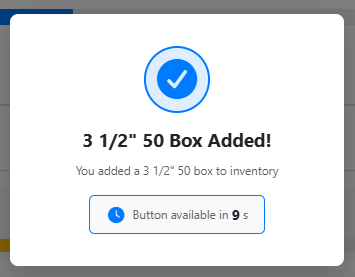
- Safety Cooldown: To prevent double-clicking, clicking + Add disables the button for 10 seconds and displays a countdown modal.
Sales Orders Progress Section
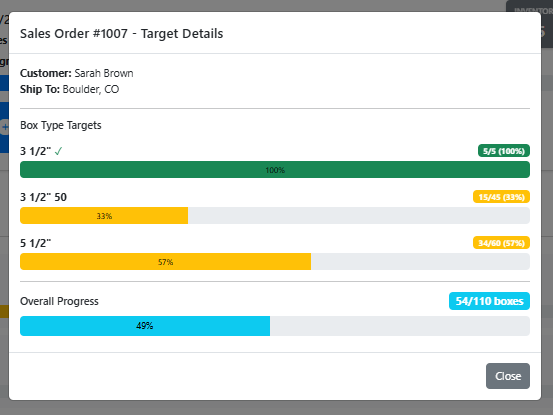
The Sales Orders Progress section displays a real-time prioritized list of open orders:
- Shows customer name, priority level, and overall box completion percentage bar.
- Click any Sales Order row to open the Target Details modal, displaying granular breakdown by box type.
Job Boxes Table
The Job Boxes table logs every box produced during the current session:
- Displays Box ID, Box Type, and timestamp.
- Click Delete on any row to remove a box logged in error.
Finishing a Boxing Job
When the shift or production run is complete:
- Click Finish Job in the bottom action bar.
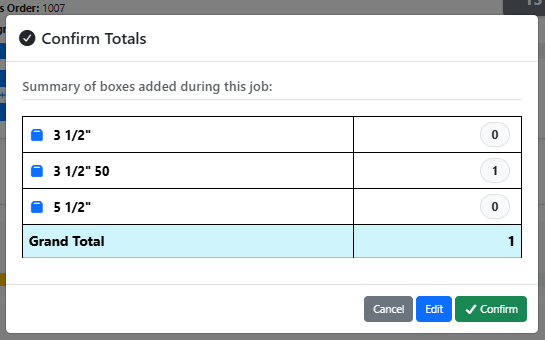
- The Confirm Totals modal appears, displaying a summary of all boxes produced during the job.
- Review the totals. If adjustments are required, click Edit to manually alter box counts.
- Click Confirm to finalize the job.
The system records the elapsed time, updates finished inventory, sends job completion notifications, and frees the station for subsequent jobs.
Roll Master Rolls Operations
The Roll Master Rolls workflow manages the unwinding of master rolls into raw sill seal material stock.
Accessing and Starting a Roll Job
Navigating to Roll Master Rolls (/sillseal/view/sill_seal_roll_jobs) displays active unwinding jobs and the option to initiate a new run.

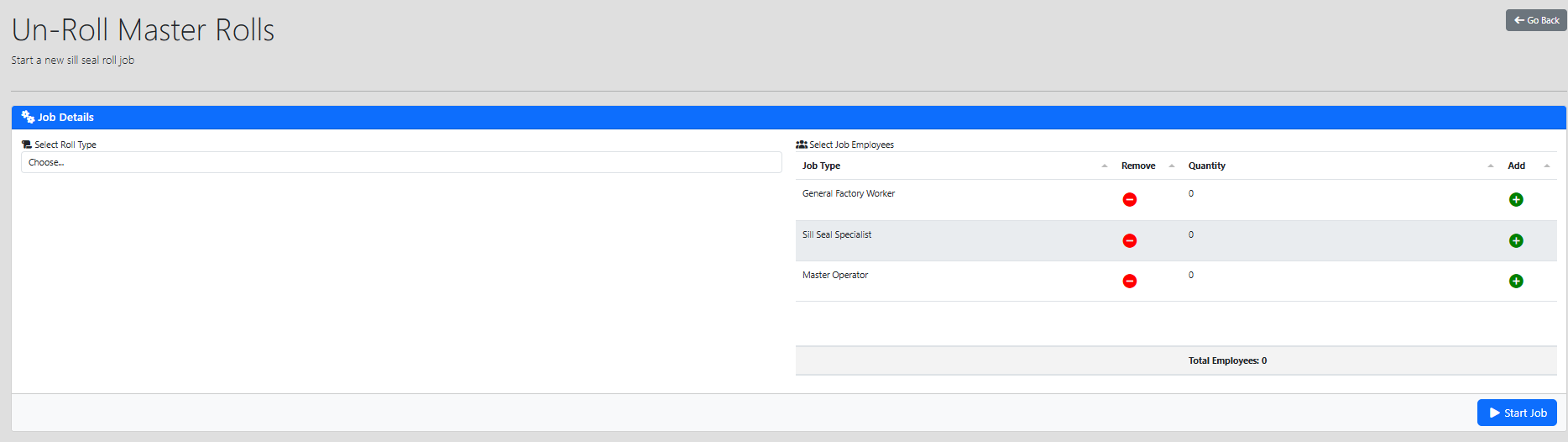
To start a new roll job:
- Click Start New Job (
/sillseal/view/sill_seal_roll). - Select the Master Roll Type from the dropdown menu.
- Add the participating employees in the Select Job Employees table.
- Click Start Job.
Managing a Roll Job In Progress
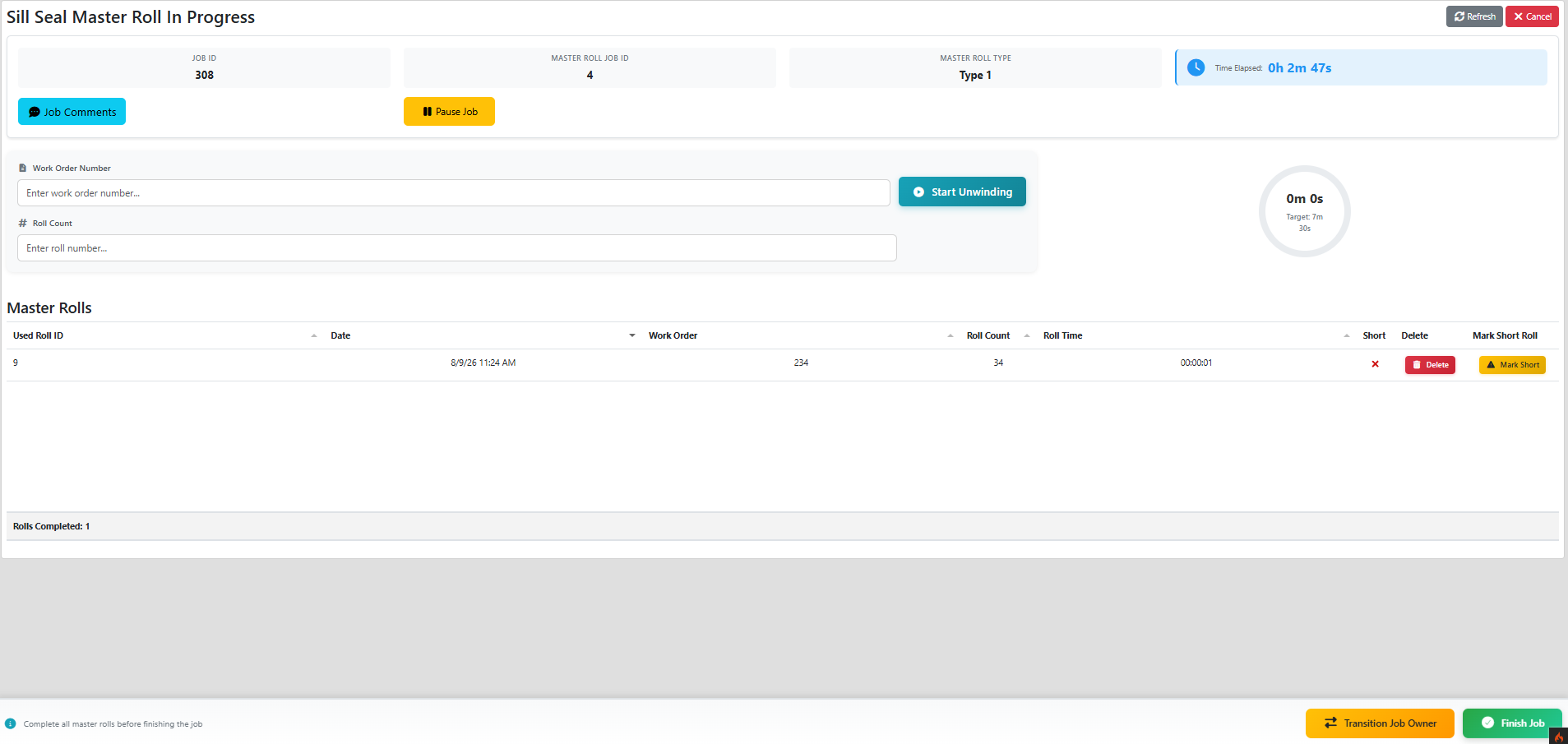
The active unwinding screen (/sillseal/roll_in_progress/{job_id}/{sill_seal_job_id}) provides real-time tracking for master roll unwinding.
Unwinding Master Rolls
- Enter the Work Order Number and Roll Count.
- Click Start Unwinding. The circular progress ring will track unwinding time against the standard target (7 minutes 30 seconds).
- Note: Transition and Finish buttons are locked while a roll is actively unwinding.
- When unwinding is complete, click Finish Roll. The completed roll is added to the Master Rolls table and deducted from raw material inventory.
Handling Short Master Rolls
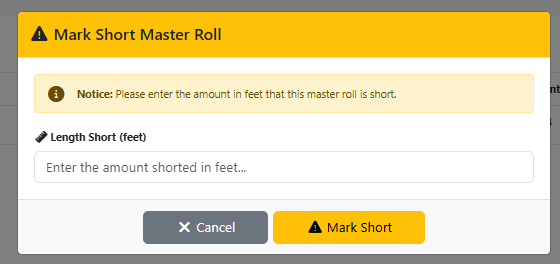
If a master roll is shorter than specified:
- Click Mark Short next to the roll in the Master Rolls table.
- Enter the length short in feet (must be less than 450 feet).
- Click Mark Short. The system flags the roll and sends a notification to management.
Deleting / Replacing Master Rolls
If a roll was scanned or entered by mistake, click Delete in the Master Rolls table to return the roll to inventory.
Transitioning Job Owner
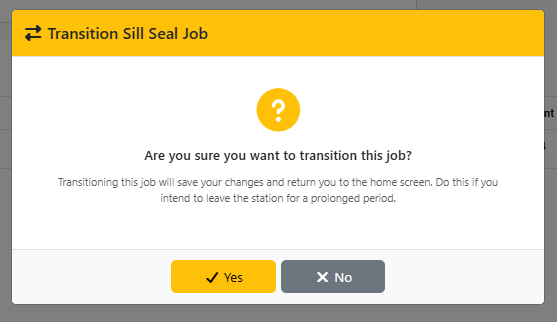
If leaving the workstation before completing the full run:
- Click Transition Job Owner in the bottom action bar.
- Confirm the transition in the modal prompt.
- The job progress is saved, allowing another operator to resume the job from the Sill Seal Roll Jobs list.
Finishing a Roll Job
To complete the rolling job:
- Ensure all active rolls are finished (at least one master roll must be processed).
- Click Finish Job in the bottom action bar.
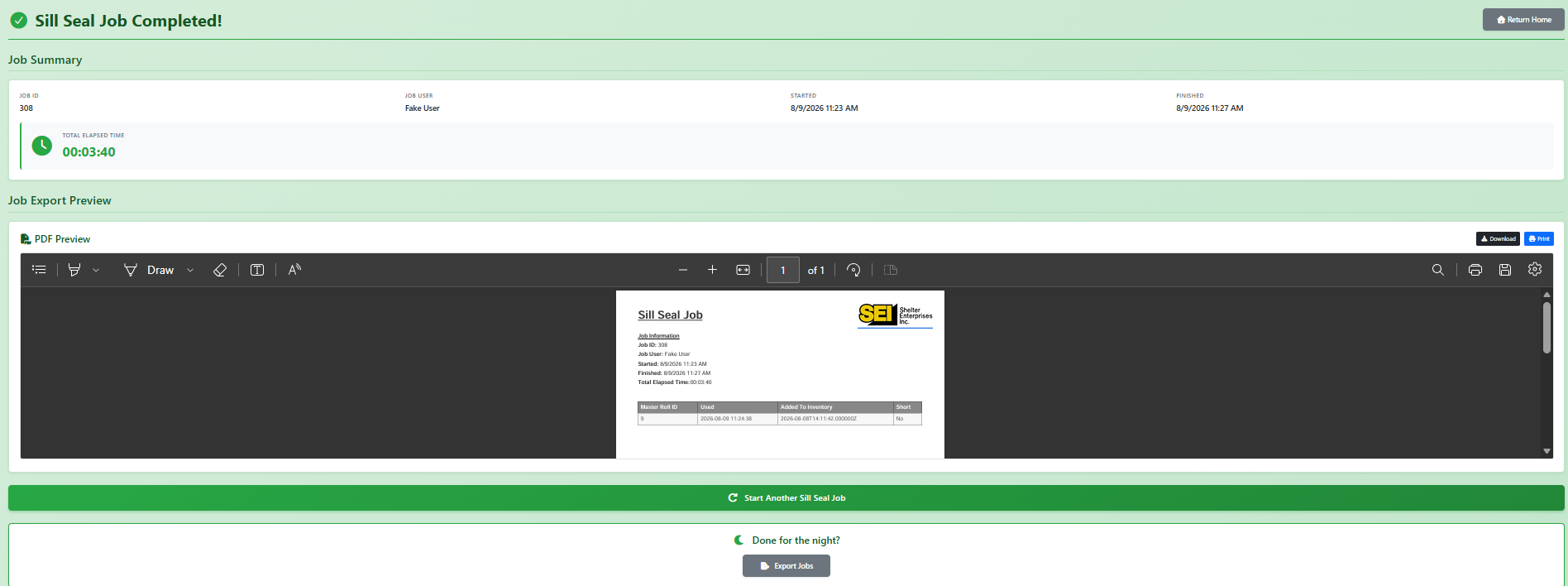
- System logs comments, records total duration, notifies short roll metrics, and redirects to the Completed Sill Seal Job summary page (
/sillseal/success/{id}).